Cybercriminals Are Moving Beyond Email: Why Microsoft Teams Is Becoming an Attack Target
Employees have learned to question emails. However, many still treat Microsoft Teams messages and calls as trusted communication.
Attackers exploit this difference. A Teams message from supposed IT support, a vendor, or a colleague can feel more immediate and believable than an email.
This is not evidence of a flaw in Teams. Criminals are abusing chat, calling, external collaboration, and support workflows. Therefore, phishing prevention must extend beyond the inbox.
Why Is Microsoft Teams Becoming an Attack Target?
Teams combines chat, meetings, files, calls, applications, and external collaboration.
Cybercriminals target Teams because:
● Employees respond to chat quickly
● Messages appear inside a familiar business application
● Display names and profile images can create false trust
● External users may contact employees
● Calls make social engineering more personal
● Links and files can be shared during a conversation
● Remote support requests can appear routine
● Compromised accounts can send internal messages
Microsoft confirms that collaboration software is now a common phishing target, although email remains the primary channel. Defender for Office 365 protection for Teams can help detect malicious messages, links, and files.
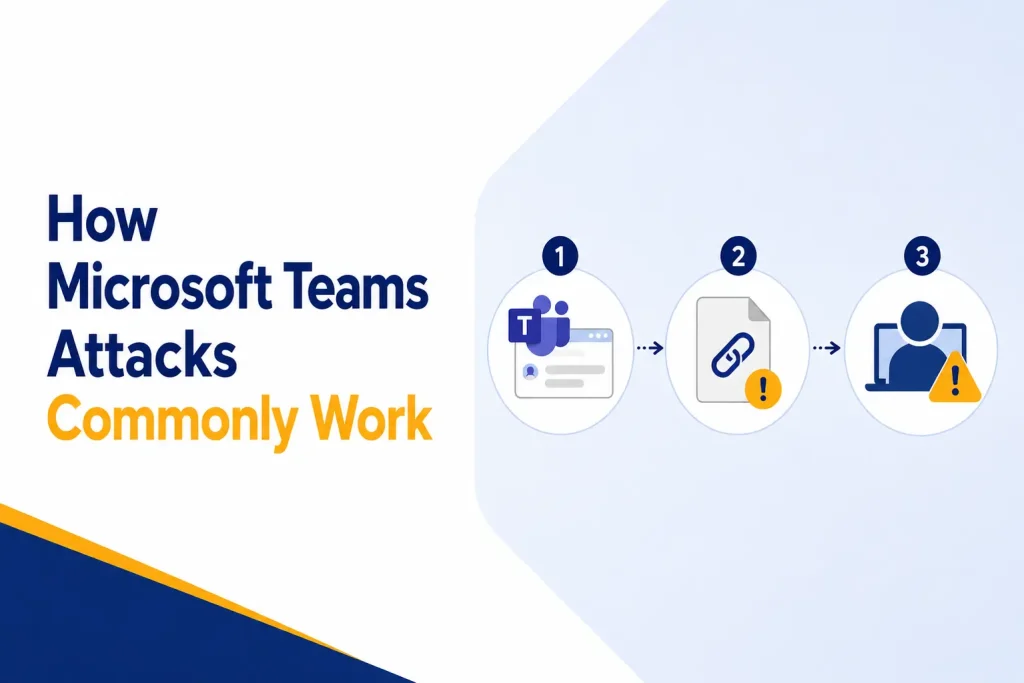
How Microsoft Teams Attacks Commonly Work
External Chat Impersonation
An attacker uses an account in another Microsoft 365 tenant and contacts an employee while impersonating IT, security, a vendor, or the help desk.
Teams can label external contacts and show Accept or Block prompts. Still, convincing names and explanations may persuade employees to continue.
Mail Bombing Followed by Fake Support
Some attackers flood an employee’s inbox with unwanted messages. Soon afterward, fake IT support contacts the employee through Teams or by phone and offers to repair the problem.
Malicious Links and Files
A Teams message may link to a fake sign-in page, document portal, update, or malicious file. Because it appears inside Teams, employees may apply less caution than they would to email.
Voice Phishing Through Teams Calls
A Teams call can make an attacker seem credible. The caller may use technical language, mention a real problem, and guide the employee through urgent actions before verification.
Remote Assistance Abuse
The attacker may ask the employee to open Quick Assist or another remote tool. The employee receives a code and approves access, believing the person is authorized.
Once connected, the attacker can control the screen, run commands, install software, or steal information. Microsoft has documented threat actors misusing Quick Assist in attacks linked to ransomware.
Compromised Internal Accounts
An attacker who controls an employee account can contact coworkers through a trusted identity or existing conversation. They may request a payment, file, password reset, MFA approval, or system access.
How a Teams Support Scam Can Become a Larger Breach
A conversation can become a serious intrusion. In April 2026, Microsoft described cross-tenant help-desk impersonation that began through Teams and moved into remote assistance.
The attackers used trusted applications and administrative tools to examine devices, establish control, move toward valuable systems, and stage data for removal.
Such activity may resemble legitimate IT work because Quick Assist, PowerShell, and remote tools have valid uses. Therefore, security teams must evaluate who initiated and approved each action.
Why Employees Trust Suspicious Teams Messages
Teams feels internal. Employees use it for quick decisions and direct conversations. As a result, they may respond before examining the sender’s organization.
Chat and calls let attackers answer questions and apply pressure in real time. The interaction can feel like a normal support session instead of phishing.
Attackers may also know the employee’s name, role, manager, or current project through public information, data breaches, or earlier compromises.
Warning Signs of a Microsoft Teams Attack
Employees should pause when they notice:
● An unexpected message from an external organization
● A display name that resembles internal IT support
● A request to ignore an external sender warning
● An unsolicited call about a problem the employee did not report
● Instructions to open Quick Assist or another remote tool
● Pressure to act immediately or keep the request confidential
● A request for a password, MFA code, or authentication approval
● A link to a security update, mailbox repair, or account verification page
● A request to install software or approve administrator access
● A sender who refuses verification through the normal help-desk channel
What Could a Teams-Based Attack Cost a Business?
Consequences include:
● Compromised Microsoft 365 accounts
● Stolen email, files, and customer information
● Fraudulent payments or invoice changes
● Malware or ransomware deployment
● Unauthorized remote access
● Lateral movement to other business systems
● New authentication methods or persistence tools
● Service disruption and incident response costs
● Compliance, legal, and notification obligations
● Loss of customer or partner trust
A compromised account can target more employees. Consequently, one interaction can create a chain of internal phishing attempts.
How Businesses Can Improve Microsoft Teams Security
Protection requires platform settings, identity controls, endpoint security, training, and monitoring.
Review External Access Policies
Determine who needs external communication. Then restrict access where the business benefit does not justify the risk.
Microsoft provides controls for external Teams meetings and chat, including organizational allow and block settings. Review them regularly.
Enable Teams Threat Protection
Use Defender for Office 365 where licensing allows. Safe Links evaluates URLs at click time, while Zero-hour Auto Purge can remove messages later identified as malicious.
Confirm that policies include Teams. Email protection does not automatically cover every collaboration channel.
Restrict Remote Support Tools
Define approved remote tools, authorized users, and session procedures. Consider limiting Quick Assist and similar software to managed devices or support teams.
Monitor unexpected launches, remote sessions, and command activity after support connections.
Create a Verifiable Help-Desk Process
Publish the account names, domains, phone numbers, and channels used by legitimate IT support.
Employees should end unexpected calls and contact the help desk through a known method. A verification phrase can add protection for remote-support requests.
Strengthen Identity Security
Require MFA and Conditional Access. Passkeys, FIDO2 security keys, and Windows Hello provide stronger protection than reusable codes.
Apply least privilege. Privileged users should use separate administrative accounts and managed devices.
Train Employees Beyond Email Phishing
Training should include Teams chats, calls, meeting invitations, external labels, file sharing, and remote-access requests.
Use real examples. Teach employees to check sender identities, respect warnings, and report suspicious interactions without blame.
Monitor Teams, Identity, and Endpoint Activity
Monitor external chats, risky links, unusual sign-ins, new MFA methods, remote tools, commands, and large data transfers.
Combine signals. A new external chat followed by Quick Assist and PowerShell is more concerning than any event alone.
Prepare a Teams Incident Response Plan
Document how to report and investigate Teams threats. Responses may include blocking senders, preserving chats, revoking sessions, resetting credentials, isolating devices, and finding related messages.
Fast reporting helps IT stop attacks before they spread.
What Should an Employee Do After a Suspicious Teams Interaction?
The employee should stop the interaction and contact the help desk through a known channel. They should preserve the conversation as evidence.
If they granted remote access, the employee should follow company isolation procedures and contact IT immediately. They should explain what they approved and whether they entered authentication information.
IT can revoke sessions, reset credentials, examine the device, review sign-ins, and find similar contacts.
How Capitol Technology Can Help?
Capitol Technology can assess Teams settings, Microsoft 365 identity controls, Defender policies, remote support, endpoint protection, training, and incident response.
We can reduce unnecessary external access, strengthen authentication, improve monitoring, and create a support verification process. Your business can then collaborate without treating every interaction as trustworthy.
Conclusion
Cybercriminals are not abandoning email. They are adding Microsoft Teams and other collaboration platforms to their methods.
Use layered protection. Control external access, protect links and files, restrict remote tools, strengthen identities, train employees, and connect Teams activity with endpoint and sign-in monitoring.
Most importantly, employees should verify an unexpected Teams message from “IT support” like a suspicious email.
Ready to strengthen Microsoft Teams security? Contact Capitol Technology for a Microsoft 365 security assessment and practical improvement plan.
Frequently Asked Questions
Can External Users Contact Employees Through Microsoft Teams?
Yes, if external access policies allow it. Teams displays external labels and Accept or Block prompts, but administrators should review who needs access.
Is Microsoft Teams Less Secure Than Email?
Not necessarily. Both channels have controls. However, employees may trust Teams more, while attackers combine chat, calls, links, files, and remote support.
Should Businesses Disable Quick Assist?
It depends on business needs. Define who may use it, how sessions are verified, and how unexpected activity is detected.
Does MFA Stop Microsoft Teams Phishing Attacks?
MFA reduces risk but cannot stop every social engineering attack. Attackers may persuade users to approve access or grant remote control. Phishing-resistant MFA and verification provide stronger protection.